

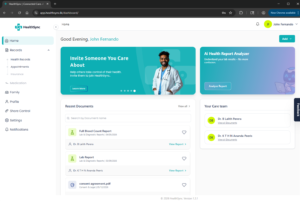
The HealthSync Dashboard is designed to give you quick and easy access to your health records, family profiles, AI-powered tools, and account settings – all from one centralized screen.
This guide explains each section of the dashboard and how to use it effectively.
Dashboard Overview #
After logging in, you will be taken to the main HealthSync Dashboard.
The dashboard includes:
- Header Navigation
- Sidebar Menu
- Quick Actions
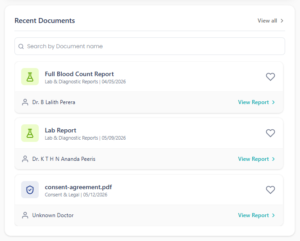
- Recent Documents
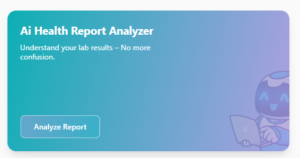
- AI Health Report Analyzer
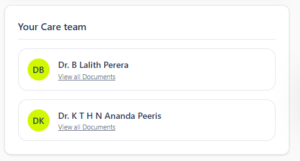
- Care Team Section
- Notifications
- Account & Profile Menu
Header Section #
The header is located at the top of the dashboard and contains quick-access tools and account information.
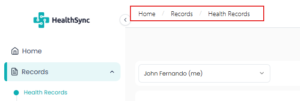
1. Page Navigation #
Located on the top-left side of the header.
This displays the current page you are viewing within the application.
2. Notifications #
The notification icon allows you to view important updates and alerts related to your account.
Examples include:
- Shared records
- AI analysis completion
- Security alerts
- System announcements
- Appointment or provider notifications
Click the bell icon to open your notifications panel.

3. Profile & Account Menu #
Located on the top-right corner of the dashboard.
This section displays:
- Your profile picture or initials
- Your account name
Clicking your profile opens additional options such as:
- My Profile
- Settings
- Logout
- Account Preferences
Sidebar Navigation Menu #
The left sidebar provides access to the main sections of HealthSync.
1. Home #
The Home section brings you back to the main dashboard screen at any time.
Use this page to:
- Access quick actions
- Review recent documents
- View your care team
2. Records #
The Records section contains all your uploaded health documents and reports.
Inside this section, you can:
- Upload new records
- Search documents
- Organize reports
- View medical history
- Access AI-generated summaries
3. Appointments #
Add and keep a track of your appointments.
4. Family #
The Family section allows you to manage health records for your family members from a single account.
You can:
- Add family members
- Upload records for dependents
- Switch between profiles
- Manage permissions and access
This is especially useful for:
- Parents managing children’s records
- Adults supporting elderly parents
- Caregivers managing family healthcare information
5. Profile #
The Profile section contains your personal account information.
Here you can:
- Update personal details
- Edit contact information
- Manage identification details
- Update profile settings
6. Share Control #
The Share Control section allows you to securely share medical records with healthcare providers or family members.
You can:
- Grant temporary access
- Control who can view records
- Revoke access anytime
- Monitor shared activity
HealthSync gives you full control over your health data and privacy.
7. Settings #
The Settings section allows you to customize your HealthSync experience.
Settings may include:
- Security preferences
- Notification preferences
- Password management
- Language settings
- Privacy options
- Subscription & illing
8. Notifications #
The Notifications page stores your previous alerts and updates.
You can review:
- System notifications
- Shared record activity
- AI processing updates
- Security notifications
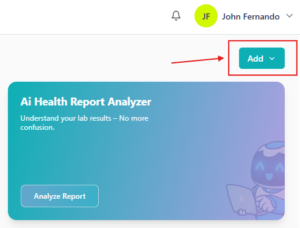
Quick Action Button #
The Add button located near the top-right side of the dashboard allows you to quickly perform important actions.
Depending on your account features, actions may include:
- Upload a document
- Add a family member
- Analyze a report
HealthSync Information & Feature Cards #
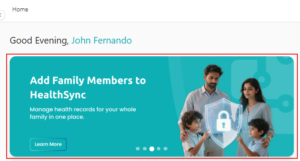
The dashboard may display rotating information cards and feature highlights.
Examples include:
- Privacy & Security awareness
- New platform features
- Health tips and announcements
These cards provide quick access to important HealthSync tools and updates.
AI Health Report Analyzer #
The AI Health Report Analyzer helps simplify complex medical reports using artificial intelligence.
Using this feature, you can:
- Upload lab reports
- Receive simplified explanations
- Identify important findings
- Understand medical terminology more easily
Important:
AI-generated insights are designed to support understanding and should not replace professional medical advice.
Recent Documents Section #
The Recent Documents section displays your latest uploaded medical records.
From here, you can:
- Quickly access recent files
- Search documents
- Open reports
- Review upload history
Each document card may display:
- Document name
- Category
- Upload date
- Associated healthcare provider
Your Care Team #
The Care Team section displays healthcare providers associated with your records.
From this section, you can:
- View provider-linked records
- Access shared reports
- Review provider activity
Dashboard Tips #
Use Search to Find Records Faster #
The Recent Documents section includes a search bar that helps you quickly locate records by name.
Keep Your Profile Updated #
Ensure your:
- Mobile number
- Email address
- Identification details
Remain accurate for better security and account recovery.
Review Notifications Regularly #
Notifications help you stay informed about:
- Shared documents
- Security activity
- AI analysis results
- New platform features
Need Help? #
If you experience issues while navigating the dashboard, please contact the HealthSync Support Team for assistance.


