

HealthSync allows you to easily view, organize, and update your health records from the Health Records section.
This guide explains how to browse your records using the timeline, search and filter documents, view uploaded files, and update document information.
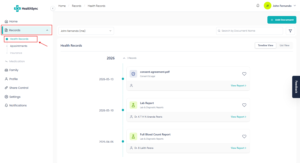
Accessing Health Records #
To open your records:
- Click Records from the left navigation menu
- Select Health Records
The Health Records page displays all documents uploaded under the selected profile.
Using the Timeline View #
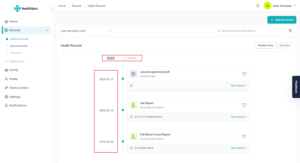
By default, HealthSync displays your records using the Timeline View.
The timeline organizes your documents in chronological order based on the Document Date selected during upload.
This helps you easily track your medical history over time.
Switching Between Timeline & List View #
HealthSync allows you to switch between:
- Timeline View
- List View
Use the view selector at the top of the page to choose the layout you prefer.
- Timeline View is useful for tracking health history chronologically
- List View is useful for quickly browsing large numbers of records

Searching Records #
The search bar at the top of the page allows you to quickly find documents.

You can search using:
- Document name
- Doctor name
- Keywords related to the document
Examples:
- Full Blood Count
- MRI Report
- Dr. Perera
Search results are updated automatically as you type.
Using Filters #
For more advanced searches, click the Filter button next to the search bar.
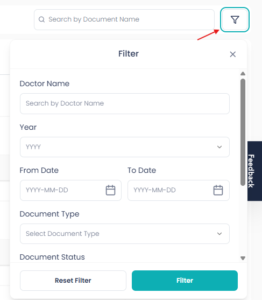
Filters help you narrow down records using specific criteria such as:
- Doctor name
- Year
- Date range
- Document type
- Document status
This is especially useful when managing a large number of health records.
After selecting filters, click Filter to apply them.
You can also click Reset Filter to clear all filters.
Viewing a Document #
To open a document:
- Click the document card from the timeline or list
- The document will open on the right side of the screen under the Document tab
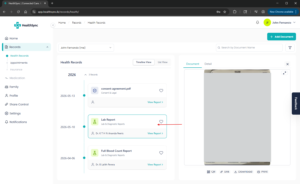
From here, you can:
- View the uploaded document
- Zoom into the document
- Download the file
- Print the document
- Access QR or sharing options (if enabled)
Viewing Document Details #
Click the Details tab to view additional information related to the document.
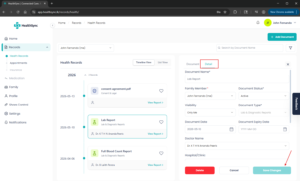
This includes information such as:
- Document name
- Document date
- Doctor name
- Hospital or clinic
- Notes
- Visibility settings
- Family member assignment
Editing Record Information #
Users can edit most document details after upload.
However, the Document Type cannot currently be edited after upload.
After making changes:
- Click Save Changes
- The updated information will automatically be saved
Keeping document information accurate helps improve search, organization, and AI analysis.
AI Report Tab #
If the document was analyzed using the HealthSync AI Report Analyzer, an additional AI Report tab will appear.
This tab displays:
- AI-generated summaries
- Simplified explanations
- Key findings
- Important health indicators
This helps users better understand complex medical reports such as lab results.
Learn more under:
👉 AI Report Analyzer


