

HealthSync allows you to securely share health records with doctors, hospitals, family members, or other healthcare providers.
You can share documents using:
- Secure sharing links
- QR codes
- File downloads
- Printing options
HealthSync is designed to help you share sensitive medical documents safely while maintaining control over access.
Accessing Sharing Options #
To share a document:
- Open the Health Records section
- Select the document you want to share
- Open the document in the document viewer
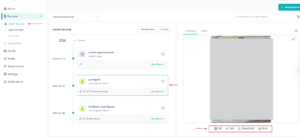
Sharing options are displayed underneath the document viewer.
Available options include:
- Download
- Generate Link
- Generate QR
Downloading or Printing Documents #
Users can directly:
- Download a copy of the document
- Print the document
These options are useful when submitting records physically or attaching them to emails.
Secure Sharing with Links or QR Codes #
Generating a secure link or QR code is the recommended way to share sensitive health documents.
This method allows you to:
- Control document access
- Set expiration times
- Protect documents using passwords
- Revoke access at any time
Generating a Secure Sharing Link #
To generate a secure link:
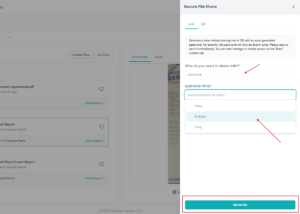
- Click the Link option underneath the document viewer
- The Secure File Share side panel will open
- Enter the name of the person you are sharing the document with
Example:- Your doctor
- Specialist
- Family member
- Select an Expiration Time
- Click Generate
HealthSync will generate:
- A secure sharing link
- A one-time password (OTP/password)
Important Security Notice #
For security reasons, the generated password will only be displayed once.
Please:
- Copy the password immediately
- Save it securely before closing the window
You can later manage or revoke access using the Share Control section.
Sharing with QR Codes #
The QR sharing option works the same way as secure links.
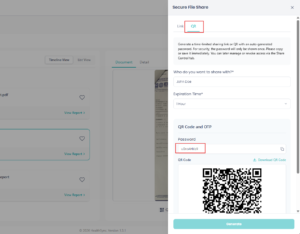
Instead of sharing a URL directly, HealthSync generates a secure QR code that can be scanned to access the document.
QR sharing also includes:
- Password protection
- Expiration controls
- Access management
This is useful for quickly sharing documents during medical visits or hospital appointments.
Managing Shared Links & QR Codes #
HealthSync keeps track of all generated sharing links and QR codes under:
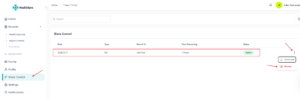
Share Control #
You can access this section from the left navigation menu.
The Share Control page displays:
- Shared date
- Share type (Link or QR)
- Shared recipient name
- Remaining time before expiry
- Current status (Active or Expired)
Revoking Access #
You can revoke access to any active sharing link or QR code at any time.
To revoke access:
- Open the Share Control section
- Find the active shared item
- Click the options menu
- Select Revoke
Once revoked:
- The link or QR code will immediately stop working
- The recipient will no longer be able to access the document
How Recipients Access Shared Documents #
When someone opens your shared link or scans your QR code, they will first see a secure access page.
The recipient must:
- Enter the password you provided
- Verify access using the correct password
Once verified, they will be able to securely view the shared document.
This additional security layer helps protect sensitive health information from unauthorized access.


